
Hi everyone! Welcome to my first post of 2026!
If in my previous post I discussed how to turn a PC into a server using VMware Workstation, this time I want to share a lighter, more seamless, and resource-efficient approach that I use daily on both my PC and Laptop: Homelab on WSL (Windows Subsystem for Linux).
For Windows users who want to learn server environments or DevOps without spinning up full VMs that eat up RAM, WSL is a game changer. We can run a native Linux kernel directly inside Windows.
The best part? I’ve organized all the configurations into a repository so it’s completely “Plug & Play” on any device.
Why Switch to WSL?
Although the VMware setup is powerful, running Docker on top of WSL 2 offers near-native performance with significantly less overhead.
This is incredibly helpful, especially when I’m on my Laptop (saving battery life and keeping it cool) or on my PC for quick development without waiting for a VM to boot. Plus, since the configuration is file-based (Docker Compose), syncing my environment between my PC and Laptop is as easy as a git pull.
What’s Inside?
I have documented my entire homelab configuration on GitHub: reynaldiarya/My-Homelab.
The main concept of this repository is being organized and easy to manage. Each service has its own dedicated folder, and I utilize a Makefile for automation.
Here are some of the “star” applications currently available in the repo:
1. Finance & Subscription Management
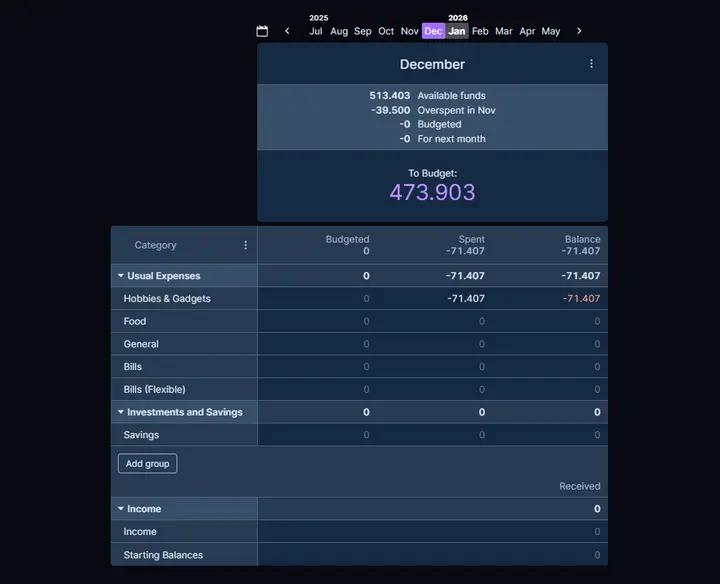
- Actual Budget: A super-fast, local-first personal finance application.
- Wallos: Helps track all monthly subscriptions (Netflix, Spotify, SaaS) so I don’t burn money unnecessarily.
2. Productivity & Automation
- n8n: The champion of automation. I use it to connect various APIs and automate boring tasks.
- Stirling PDF: Merge, split, and convert PDFs locally. Goodbye to ad-filled online converters!
3. Web Tools & SEO
- SerpBear: For monitoring keyword rankings (SEO) of the websites I manage.
- ChangeDetection.io: Monitoring changes on competitor websites or checking when items are back in stock.
4. Database & Infrastructure
- Databases: MariaDB, PostgreSQL, MongoDB, and Redis.
- Portainer: Managing Docker containers via a GUI.
Note: Where are Grafana, Uptime Kuma, & AdGuard?
You might ask, “Why no Uptime Kuma, Smokeping, Grafana, or AdGuard Home?”
Actually, those apps are great, but I intentionally excluded them from this WSL setup. Here is why:
- Power Consumption & Uptime: This setup runs on my Laptop and my Gaming PC. As we know, Gaming PCs draw a lot of power (High Wattage). It is inefficient to leave this PC running 24/7 just to run server monitoring; the electricity bill would skyrocket. Since the PC is not always online, monitoring data (like Uptime Kuma) would be inaccurate.
- AdGuard Home: For DNS specifically, I feel a local setup is less effective because if the PC/Laptop is turned off or taken on a trip, network configurations can get messy. Currently, I am comfortable enough using Cloudflare Family DNS for basic filtering, even though it lacks the granular ad-blocking features of AdGuard.
Key Features: Makefile & Resource Limits
One of the things I’m most proud of in this setup is how easy it is to manage.
1. The Power of Makefile
I don’t need to type long docker commands. Just type simple commands in the WSL terminal:
make start-all: Starts all applications.make start-mariadb: Starts only the database.make update-all: Updates all containers to the latest version.
2. Lag-Free Experience (Resource Limits)
Docker can often eat up all your RAM. In this setup, I’ve included dynamic CPU and RAM limit configurations via the .env file. My PC and Laptop remain responsive for multitasking while running these servers in the background.
Conclusion & Future Updates
Homelabbing on Windows via WSL is a joy for productivity. This repository will be dynamic.
I will likely add new applications gradually. I will update you either by editing this post or writing a new article.
To ensure you don’t miss any app updates, go ahead and Star the GitHub repository here:
https://github.com/reynaldiarya/My-Homelab
Hope it helps!